Easy Setup: Oracle 23ai Free Database, APEX, ORDS and sqlCL in Docker
Constructed on Oracle 23ai image, it includes Free Database, APEX, ORDS, and sqlCL.

Database Developer with over 10 years of experience in designing, developing, and delivering optimized solutions across diverse business functions. Proficient in Oracle SQL, PL/SQL, Performance Tuning, Oracle APEX, ORDS, Unix Shell Scripting, and Python Fundamentals. With extensive expertise in development, maintenance, and optimization, I possess strong skills in coding, debugging, testing, and troubleshooting complex systems. I have worked across domains such as Finance and Risk, Ratings, Wealth Management, SOX Compliance, and Fleet - Fuel Management. Passionate about leveraging my technical expertise and domain knowledge to deliver efficient, data-driven solutions that enhance business performance and foster growth.
In this guide, I will walk you through the process of setting up Oracle 23ai Free Database, Oracle APEX (Application Express), ORDS (Oracle REST Data Services) and oracle sqlCL in a Docker container. The VM Appliance comes preloaded with these tools, but this guide focuses on the Docker environment for flexibility and ease of use.
Step 1: Install Docker Ensure you have Docker installed on your system. You can check the version or install Docker using the following commands:
docker version / docker --version
# OR
sudo yum install docker -y
Step 2: Pull and Run Oracle 23ai Free Database Container Pull the Oracle 23ai Free Database Docker image and run it with specific port mappings to avoid conflicts:
docker pull container-registry.oracle.com/database/free:latest
docker run -d -it --name 23aifree -p 8521:1521 -p 8500:5500 -p 8023:8080 -p 9043:8443 -p 9922:22 -e ORACLE_PWD=oracle container-registry.oracle.com/database/free:latest
docker exec -it 23aifree /bin/bash
Step 3: Setup Oracle APEX Inside the container, download and install Oracle APEX:
curl -o apex-latest.zip https://download.oracle.com/otn_software/apex/apex-latest.zip
unzip apex-latest.zip
rm apex-latest.zip
cd apex
Step 4: Configure Oracle APEX Allow the Oracle Database to settle, then open SQL*Plus and set the PDB:
sqlplus / as sysdba
ALTER SESSION SET CONTAINER = FREEPDB1;
@apexins.sql SYSAUX SYSAUX TEMP /i/
ALTER USER APEX_PUBLIC_USER IDENTIFIED BY oracle ACCOUNT UNLOCK;
@apxchpwd.sql
exit
Step 5: Set Up ORDS and Java Install necessary tools, create folders, and configure ORDS:
mkdir /home/oracle/software
mkdir /home/oracle/software/apex
mkdir /home/oracle/software/ords
mkdir /home/oracle/scripts
cp -r /home/oracle/apex/images /home/oracle/software/apex

su
dnf update -y
dnf install sudo -y
dnf install nano -y

nano /etc/sudoers
# Add 'Defaults !lecture' in Defaults section
# This is to supress banner message
# Add 'oracle ALL=(ALL) NOPASSWD: ALL' at the end
# This is to add oracle user in sudoes list
# so that user oracle can execute sudo command without password

dnf install java-17-openjdk -y
java -version

mkdir /etc/ords
mkdir /etc/ords/config
mkdir /home/oracle/logs
chmod -R 777 /etc/ords

yum-config-manager --add-repo=http://yum.oracle.com/repo/OracleLinux/OL8/oracle/software/x86_64
dnf install ords -y
export _JAVA_OPTIONS="-Xms512M -Xmx512M"
ords --config /etc/ords/config install

# Follow the configuration steps
Installation Type > Choose option [2] Enter
Connection Type > Choose option [1] Enter
host name > Enter
listen port > Enter
service name > FREEPDB1
administrator username > SYS
password > oracle
default tablespace > Enter
temp tablespace > Enter
features > Enter
Start ORDS > [1] Enter <-- Standalone Mode
protocol > [1] < http
port > [1] <-- 8080
Static Resources > /home/oracle/software/apex/images
ORDS will then be configured. It will take 1-2 mins. You should now see below.
Oracle REST Data Services version : 23.1.0.r0861423 Oracle REST Data Services server info: jetty/10.0.12 Oracle REST Data Services java info: OpenJDK 64-Bit Server VM 17.0.6+10-LTS
you can now check http://localhost:8023/ords/ in the browser for the apex.
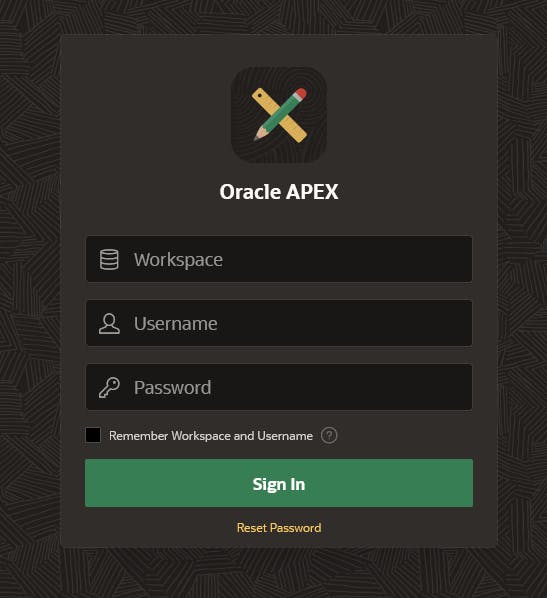
Step 6: Create Startup and Shutdown Scripts.
Create scripts for starting, stopping, and to auto-start ORDS:
# Create an ORDS startup script
nano /home/oracle/scripts/start_ords.sh
# Paste in the script
export ORDS_HOME=/usr/local/bin/ords
export _JAVA_OPTIONS="-Xms512M -Xmx512M"
LOGFILE=/home/oracle/logs/ords-`date +"%Y""%m""%d"`.log
nohup ${ORDS_HOME} --config /etc/ords/config serve >> $LOGFILE 2>&1 & echo "View log file with : tail -f $LOGFILE"

# Create a stop_ords.sh file
nano /home/oracle/scripts/stop_ords.sh
# Paste in the script
kill `ps -ef | grep [o]rds.war | awk '{print $2}'`

# create script to start ords automatically when image runs
nano /opt/oracle/scripts/startup/01_auto_ords.sh
# Paste this in the script
sudo sh /home/oracle/scripts/start_ords.sh
exit
Step 7: Final Steps and Enjoy.
Exit the Docker container, restart the container, and access APEX, and install sqlCL if needed:
exit
docker restart 23aifree
# Wait 60 seconds and access APEX at localhost:8023/ords/apex
# Workspace > INTERNAL
# Username > ADMIN
# Password > The Complex Password

Now you can also install sqlCL if you want -
dnf install sqlcl -y
# check if sqlcl installed properly
# sql sys/oracle as sysdba
SQL> help
SQL> exit
Bonus: Commit, Tag, and Push Docker Image Optionally, if you want to save your setup:
docker commit 23aifree apex:latest
docker tag apex:latest panigrahisantosh/apex:latest
docker push panigrahisantosh/apex:latest

# Note : Here panigrahisantosh is my docker hub username.
# you can replace this with username.
# Finally as this new image is in docker hub. you can always pull and use -
> docker pull panigrahisantosh/apex:latest
Conclusion: Following this comprehensive guide will enable you to run Oracle 23ai Free Database with APEX and ORDS in a Docker container, providing a flexible and scalable environment for your development needs. Enjoy the seamless integration of these powerful tools and enhance your database development experience.